TRP
On the "TRP" tab, you will find a table with a list of VASPs using the TRP protocol.
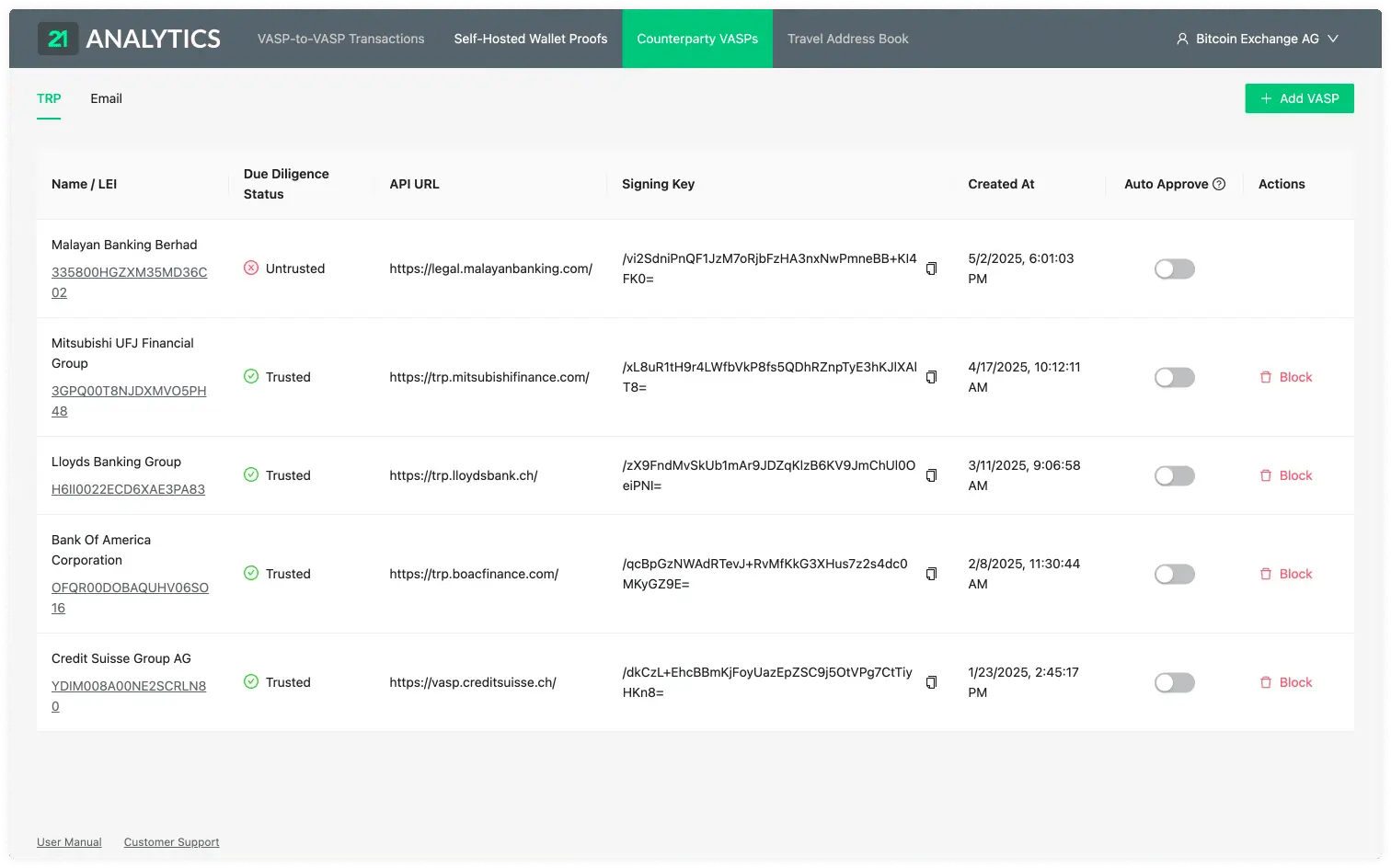
Click a row to open the counterparty's detail view. Click the History icon in
the title bar to view its events or export its event history. See
Event History.
This table displays the following information.
Table Columns Overview
Name / LEI
The legal name and Legal Entity Identifier (LEI) of the VASP.
Due Diligence Status
The due diligence status indicates whether this VASP has undergone the counterparty due diligence process and approved for transactions, or whether this is still pending. See Counterparty Due Diligence and Untrusted VASPs for more information.
API URL
The URL associated with the VASP. This is required to establish a connection through TRP (Travel Rule Protocol).
Signing Key
The signing key of the counterparty VASP. TRP will automatically receive this with auto-discovery.
Created At
The time and date when the VASP was added to the Counterparty VASPs.
Auto Approve
This switch indicates if the auto-approve feature is enabled. By clicking it you can disable or enable the auto-approval for the particular VASP.
When enabled, all transactions that come from the associated counterparty VASP will be automatically approved.
When disabled, transactions will need to be approved or declined either via API or by you manually in the GUI.
Actions: Block
For a currently trusted VASP, click Block in the Actions column. Its due
diligence status then changes to Untrusted and auto-approval is disabled.
Untrusted VASPs
When you receive a transaction from an unknown VASP, the 21 Travel Rule software automatically adds it to the counterparty VASP table with an Untrusted due diligence status.
The red badge on the Counterparty VASPs tab shows the number of new untrusted VASPs.
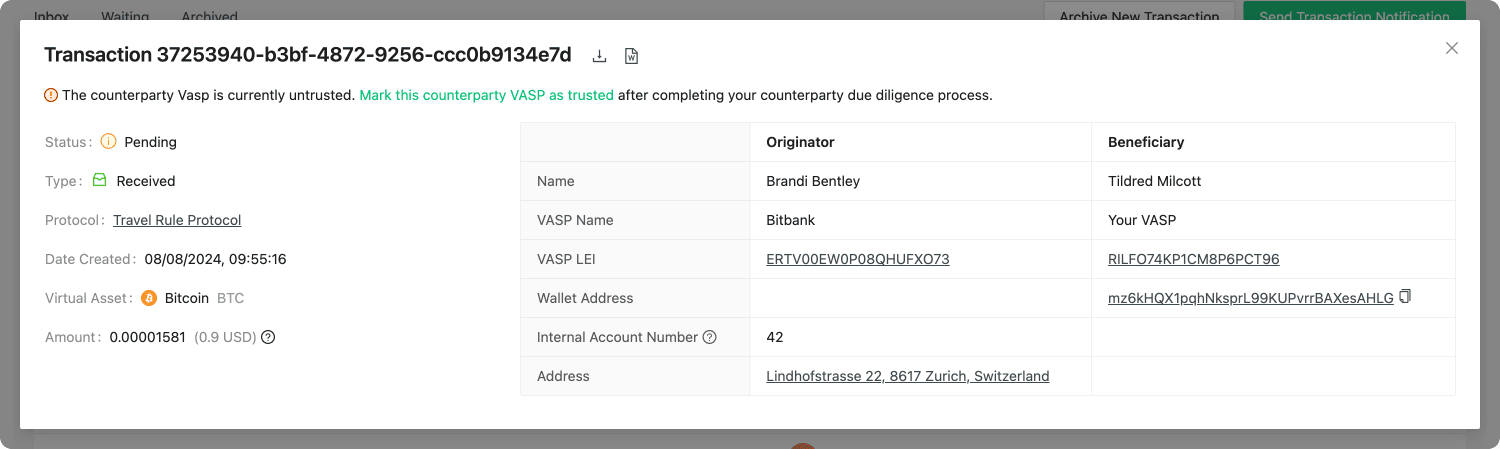
The corresponding transaction in your inbox remains blocked until the counterparty has undergone your due diligence process. Its Actions column shows an untrusted-counterparty warning instead of the normal transaction actions. The transaction detail view shows the same warning and links to the counterparty's trust action:
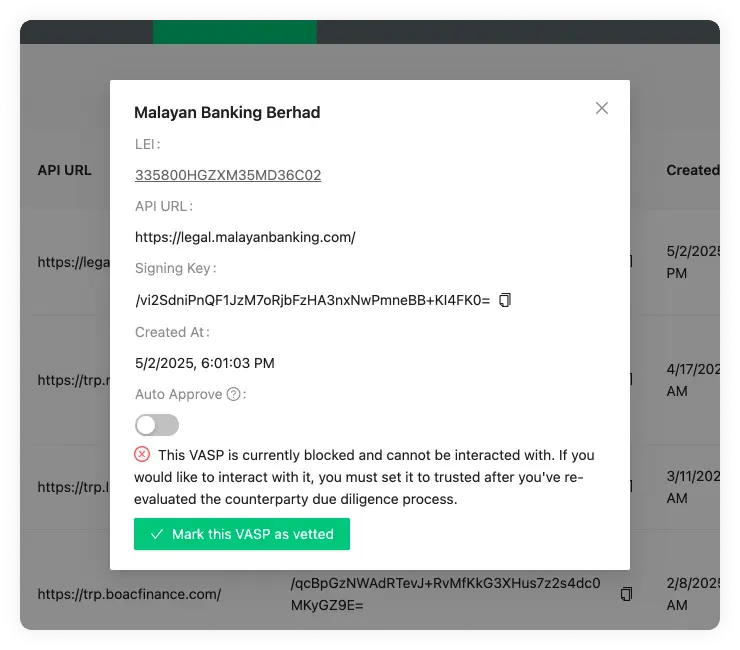
After you have completed the counterparty due diligence process, the VASP can be marked as trusted on the TRP counterparty VASPs detail view:
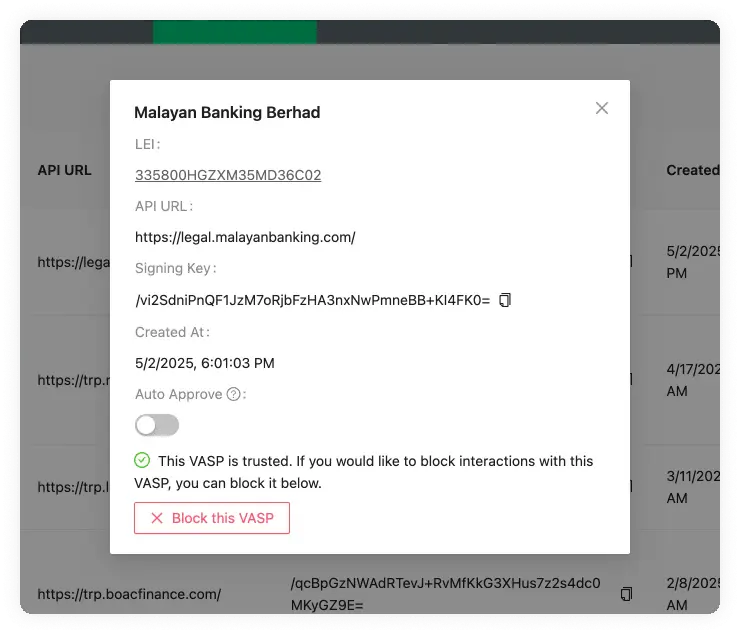
To stop all communication with a TRP VASP, open its detail view and click
Block this VASP. You can later reverse this action.