Detailed Transaction
When you click on one of the rows in the Transactions Overview table, a pop-up will display.
Click the History icon in the title bar to view this transaction's events or
export its event history. See Event History.
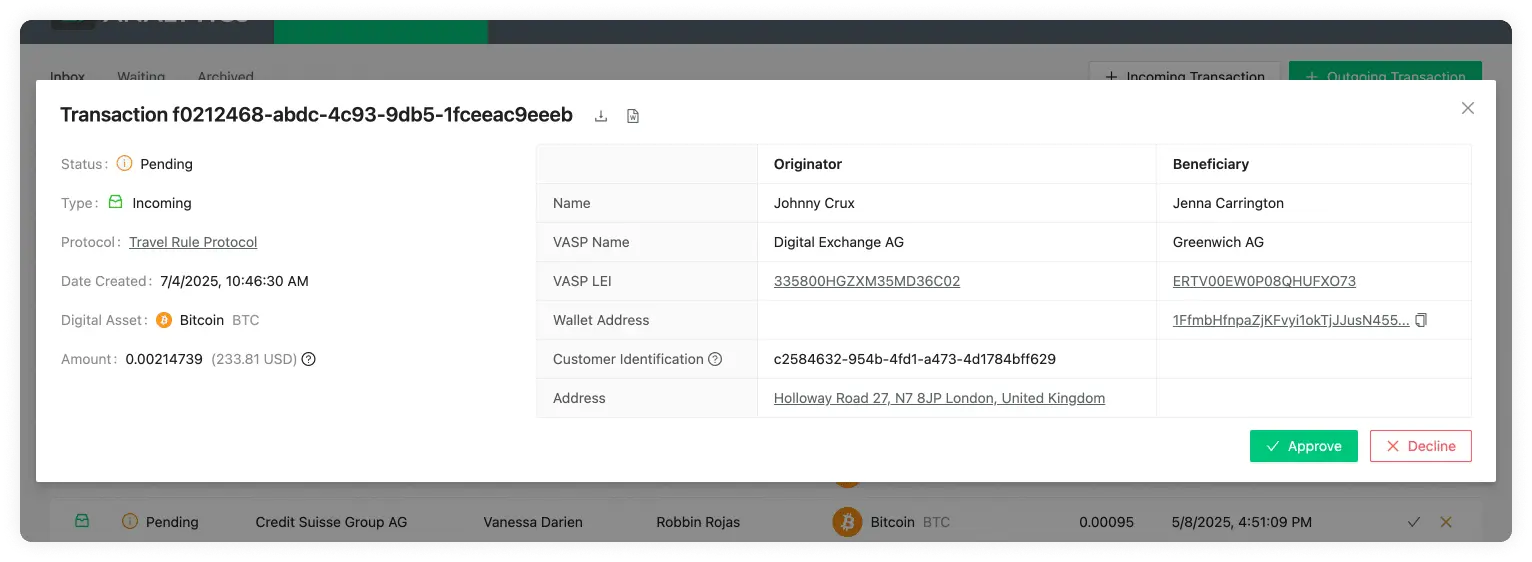
Transaction Details
Travel Transaction ID
At the top left of the pop-up, you can find a title. This title shows the ID of the transaction in 21 Travel Rule. This should not be confused with the blockchain transaction ID. This is used to find specific transactions from all your list of transactions.
Transaction Status
Can be either Pending or Approved.
Once a counterparty VASP has sent a transaction to you, the transaction in your inbox will go into a Pending status until you Approve or Decline the transaction. The status of Pending is of Type Received when it is in the inbox.
If, on the other hand, a counterparty VASP has sent you a transaction and you have approved it, the Status of Approved will appear in your waiting table for that particular transaction. The Status of Approved is of Type Received when it's in the waiting table.
Transaction Type
Can be either Sent or Received.
When the Type has the Received value, it means a counterparty VASP has sent you, the compliance officer, a transaction. This transaction is then waiting for you to Approve it or Decline it.
When the Type has the Sent value, it means you have sent a transaction to a counterparty VASP through the Outgoing Transaction button, and the counterparty VASP has then approved or declined the transaction. This is then waiting for the last step, which is for you to Confirm or Cancel the transaction.
For a better understanding of the whole workflow, see: TRP.
Protocol
The protocol used for the transaction to be compliant.
Date Created
The time and date the transaction was Sent or Received. The format shown is day/month/year and hour/minutes/seconds. The time will be shown in the time zone configured in your browser and can be seen by hovering over the transaction date. This will reveal a tooltip with the timezone: continent/city format.
Digital Asset
Shows the symbol, name and currency code of the Digital Asset Sent or Received in the transaction. Clicking on the name will redirect you to Coinmarketcap, where you can see live information about the transaction’s asset.
Amount
The amount of a particular Digital Asset sent from the originator to the beneficiary. Yes, we do support the entire 18 decimals for Ethereum. You can also find the equivalent of the chosen Digital Asset as a US dollar equivalent. This is fetched from BitMEX, and if you hover over the USD value, you will see the date and time when the inquiry was converted.
Beneficiary Name
The first and last name of the customer who is receiving the digital asset. If you have configured the beneficiary name matching, the beneficiary name displays a matching indicator when a received name falls within the configured typo tolerance. Hover over the indicator to confirm that the name was matched according to your settings.
Beneficiary VASP Name
The name of the VASP of the customer receiving the digital asset. This name is associated with a LEI.
Beneficiary VASP LEI
The LEI (Legal Entity Identifier) of the VASP who is receiving the digital asset.
Beneficiary Wallet Address
The Wallet Address of the customer receiving the digital asset of the transaction. Clicking on it will open a new tab showing the Blockbook Block Explorer where you will be able to see the details of this particular address.
Originator Name
The first and last name of the customer sending the digital asset.
Originator VASP Name
The name of the VASP of the customer sending the digital asset. This name is associated with a LEI.
Originator VASP LEI
The LEI (Legal Entity Identifier) of the VASP who is sending the digital asset.
Originator Internal Account Number
An account number to identify the customer sending the transaction. Each customer should have their own Account Number.
Originator Address
The Address where the customer resides. This can be found on their passport or country ID.
Actions
For a transaction received from a counterparty VASP, the available actions are
Approve and Decline.
Approve
Click Approve to notify the counterparty VASP and continue the transaction
verification.
Decline
Click Decline to stop the transaction.
For a transaction that you sent and the counterparty VASP approved, the
available actions are Confirm and Cancel Transaction.
Confirm
Click Confirm to finish the verification process.
Cancel Transaction
Click Cancel Transaction to stop the transaction.
Export
Click the download-arrow icon labelled Export to Excel to download an .xlsx
(Excel) file containing the data for this transaction.
Download Report
Click the document icon labelled Download Report to download a .doc report
template for the transaction.