Detailed Transaction
When you click on one of the rows in the Transactions Overview table, a pop-up will display.
Click the History icon in the title bar to view this transaction's events or
export its event history. See Event History.
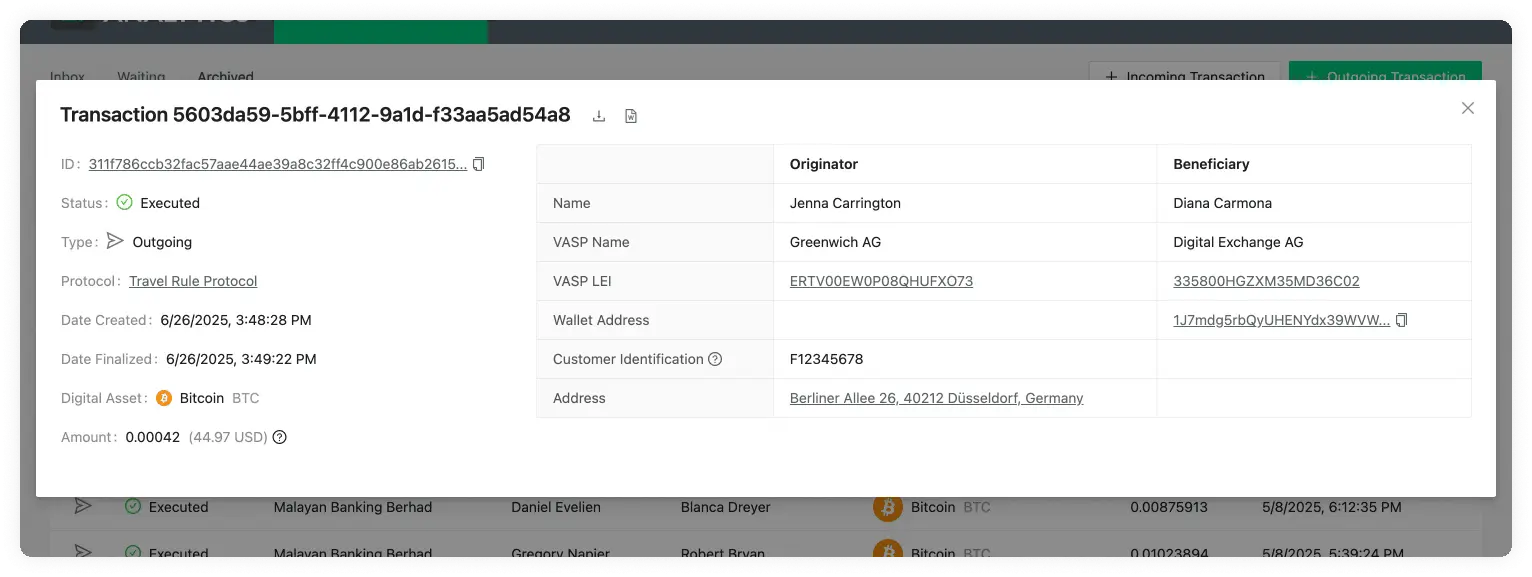
Transaction Details
Travel Transaction ID
At the top left of the pop-up, you can find a title. This title shows the ID of the transaction in 21 Travel Rule. This should not be confused with the blockchain transaction ID. This is used to find specific transactions from all your list of transactions.
Transaction ID
This field is only visible if the transaction is of type Received and was Executed or Registered. This is the transaction ID generated on blockchain for this particular transaction. This can be found on the wallets of the originator or beneficiary as well as in a blockchain explorer. Clicking on it will redirect to the Blockbook Block Explorer where you will be able to see the details of this particular transaction.
Transaction Status
Can be either Executed, Declined, Cancelled or Registered.
If the transaction is of status Executed it means the transaction went through correctly and the transaction is compliant.
If the transaction has the status of Declined this means the beneficiary VASP has decided to not allow the transaction to go trough. This could be due to KYC checks not meeting the requirements expected by the beneficiary VASP.
If the transaction has the status of Cancelled this means the beneficiary VASP approved but then the originator decided to cancel the transaction from going through at the last stage of the handshake. This could be due to KYC checks ran on the beneficiary VASP not being validated.
Last of all, as a fallback to the viable protocols, transactions can be manually archived, this might not be fully compliant in some cases but it's useful to keep for future references or for countries that request less information. This will go into a status of Registered.
Transaction Type
Can be either Received or Sent.
When the Type has the Received value, it means a counterparty VASP has sent you a transaction or you have manually archived a transaction.
When the Type has the Sent value, it means you have sent a transaction to a counterparty VASP through the Outgoing Transaction button, and then the transaction was either approved, declined or cancelled.
For a better understanding of the whole workflow, see: TRP.
Protocol
The protocol used to check if the transaction was compliant.
Date Created
The time and date the transaction was Sent or Received. The format shown is day/month/year and hour/minutes/seconds. The time will be shown in the time zone configured in your browser and can be seen by hovering over the transaction date. This will reveal a tooltip with the timezone: continent/city format.
Finalized At
The time and date the transaction was either Executed, Declined, Cancelled or Registered. The format shown is day/month/year and hour/minutes/seconds. The time will be shown in the time zone configured in your browser and can be seen by hovering over the transaction date. This will reveal a tooltip with the timezone: continent/city format.
Digital Asset
Shows the symbol, name and currency code of the Digital Asset Sent or Received in the transaction. Clicking on the name will redirect you to Coinmarketcap, where you can see live information about the transaction’s asset.
Amount
The amount of a particular Digital Asset sent from the Originator to the Beneficiary. Yes, we do support the entire 18 decimals for Ethereum. You can also find the equivalent of the chosen digital asset as a US dollar equivalent. This is fetched from BitMEX, and if you hover over the USD value, you will see the date and time when the inquiry was converted.
Comment
For a received transaction, the GUI allows you to add a comment when approving or declining it. Approval comments are internal. For TRP transactions, a decline comment is included in the rejection sent to the originator VASP.
Risk Score
This field will appear if you setup a risk analysis tool such as Chainalysis, and the transaction is of type Received and was Executed using TRP. For this you need to add the Chainalysis API key in the configure your VASP page.
Beneficiary Name
The first and last name of the customer who is receiving the digital asset. If you have configured the beneficiary name matching, the beneficiary name displays a matching indicator when a received name falls within the configured typo tolerance. Hover over the indicator to confirm that the name was matched according to your settings.
Beneficiary VASP Name
The name of the VASP of the customer receiving the digital asset. This name is associated with a LEI.
Beneficiary VASP LEI
The LEI (Legal Entity Identifier) of the VASP who is receiving the digital asset.
Beneficiary Wallet Address
The Wallet Address of the customer receiving the digital asset of the transaction. This field will only show up if the transaction is of type Received and was Executed or Registered. Clicking on it will open a new tab showing the Blockbook Block Explorer where you will be able to see the details of this particular address.
Originator Name
The first and last name of the customer sending the digital asset.
Originator VASP Name
The name of the VASP of the customer sending the digital asset. This name is associated with a LEI.
Originator VASP LEI
The LEI (Legal Entity Identifier) of the VASP who is sending the digital asset.
Originator Internal Account Number
An account number to identify the customer sending the transaction. Each customer should have their own Account Number.
Originator Address
The Address where the customer resides. This can be found on their passport or country ID.
Export
Click the download-arrow icon labelled Export to Excel to download an .xlsx
(Excel) file containing the data for this transaction.
Download Report
Click the document icon labelled Download Report to download a .doc report
template for the transaction. This action is not available for transactions that
used the email protocol.
View Visual Proof
For a manually archived transaction, click View Visual Proof to open the
uploaded file.