Inbox Transactions Overview
Our transactions inbox overview lets you easily navigate through all transactions that require an action from your side.
Inbox Transactions Table Overview
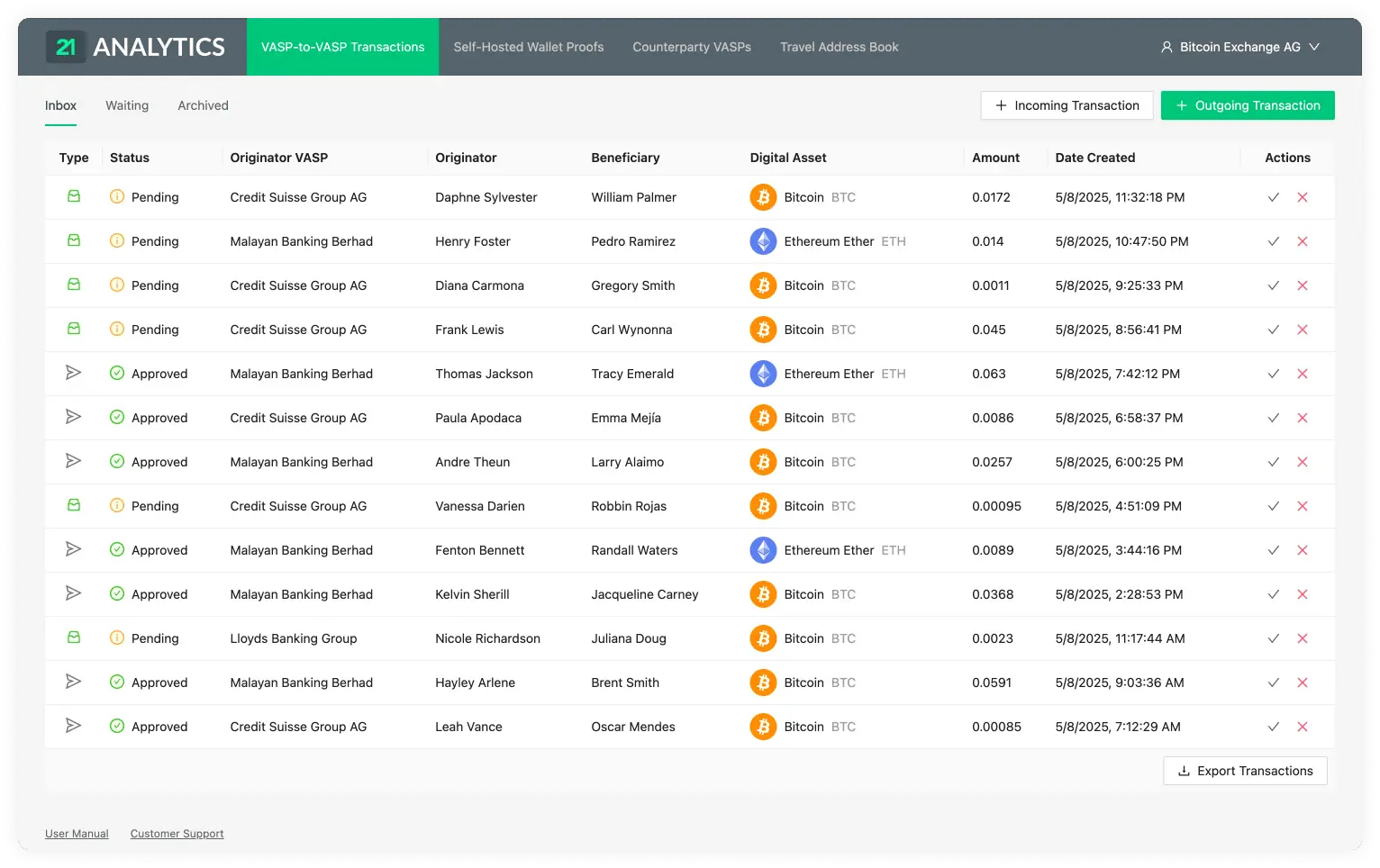
Each row contains the following fields:
Type
Status
Beneficiary
Originator
Originator VASP
Digital Asset
Amount
Date Created
Actions
Type
The inbox-tray icon represents Received, while the paper-plane icon represents Sent. Hover over either icon to display the transaction type.
When the Type has the Received value, a counterparty VASP has sent you, the compliance officer, a transaction. This transaction is then waiting for you to Approve it or Decline it.
When the Type has the Sent value, it means you have sent a transaction to a counterparty VASP through the Outgoing Transaction button, and the counterparty VASP has then approved or declined the transaction. This is then waiting for the last step, which is for you to Confirm or Cancel the transaction.
Status
Can be either Pending or Approved.
Once a counterparty VASP has sent a transaction to you, the transaction in your inbox will go into a Pending status until you Approve or Decline the transaction. The status of Pending is of Type Received when it is in the inbox.
If, on the other hand, you have sent a transaction to a counterparty VASP through the Outgoing Transaction button and the counterparty VASP has clicked Approve, the Status of Approved will appear in your inbox for that particular transaction. The Status of Approved is of Type Sent when it's in the inbox.
Beneficiary
The name and surname, as registered in a legal identity document of the person receiving the transaction.
Originator
The name and surname, as registered in a legal identity document of the person sending the transaction.
Originator VASP
The VASP of the customer who sent the transaction.
Digital Asset
Shows the symbol, name and currency code of the Digital Asset Sent or Received in the transaction. Clicking on the name will redirect you to Coinmarketcap, where you can see live information about the transaction’s asset.
Amount
The amount of a particular Digital Asset sent from the Originator to the Beneficiary. Yes, we do support the entire 18 decimals for Ethereum.
Date Created
The time and date the transaction was Sent or Received. The format shown is day/month/year and hour/minutes/seconds. The time will be shown in the time zone configured in your browser and can be seen by hovering over the transaction date. This will reveal a tooltip with the timezone: continent/city format.
Actions
The Actions column contains a check mark and a cross. For a received
transaction, these represent Approve and Decline. For a sent transaction
that the counterparty VASP approved, they represent Confirm and
Cancel Transaction. Hover over an icon to display its action name.
Approving or declining a received transaction opens a form where you can optionally add a comment. Approval records the receiver's decision and moves the transaction to the waiting table until the sender confirms the blockchain transfer. It does not require a blockchain transaction ID. Declining moves the transaction to the archived table.
For an approved sent transaction, Confirm opens a form where the sender
submits the blockchain transaction ID after executing the transfer. Submitting
the ID confirms the transfer to the receiver and moves the transaction to the
archived table. Cancelling opens a form where you can optionally add a comment
and then moves the transaction to the archived table.