Filtering
Multiple views in the GUI, such as VASP-to-VASP Transactions or Self-hosted Wallet Proofs allow you to filter for specific items matching a given set of filtering criteria. This section explains how the different filters work and interact. Throughout, we will use the Self-hosted Wallet Proofs view as an example.
For explanations on how to use the filtering in the GraphQL API, see the corresponding API section.
Filtering on Individual Columns
If a table column can have its values filtered for, there will be a small filter icon appearing in the title row. These come in three flavours, explained next. In all variants, the colour of the icon will change to blue if this column has an active filter on it.
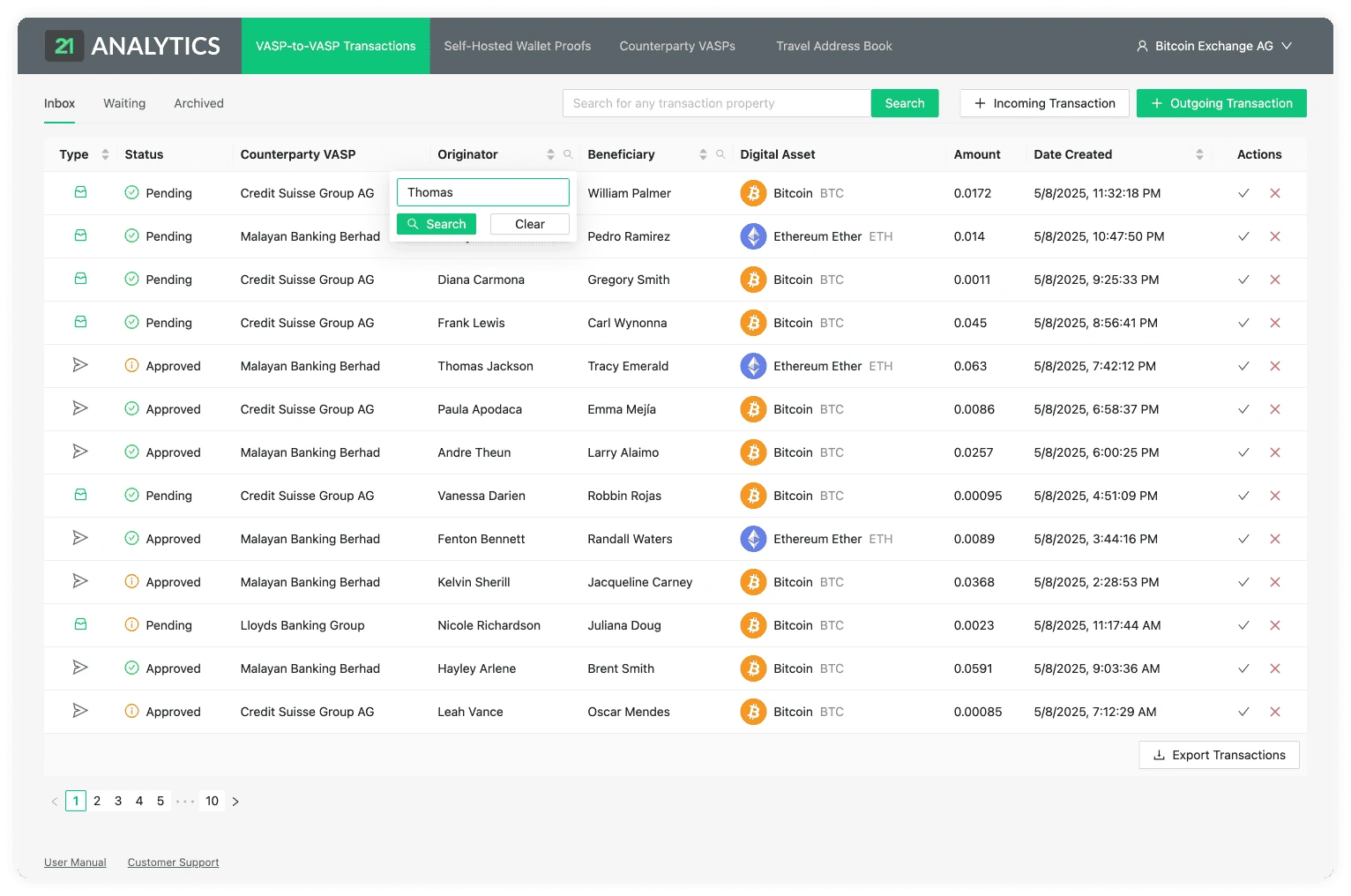
Fulltext filter
Columns decorated with a magnifying-glass icon allow you to provide a filtering
term that must appear anywhere in the corresponding value. Click the icon, enter
the term and click Search. Click Clear to remove the filter.
Filtering Among a Set of Options
Columns decorated with a filter symbol allow you to select matching values from
a list of options. Click the icon, select the values to include and click
Search. Click Clear to remove the filter.
Date range filter
Columns holding a date are decorated with a calendar icon and allow you to filter for a period by picking a start date, an end date or both.
Both dates are inclusive and are interpreted in the time zone configured in your browser. Leaving one side empty keeps the range open-ended.
Search for Anything
Some views, such as the Self-hosted Wallet Proofs have a "Search for anything" field where a given search term will be attempted to be matched against various attributes of an object, in this case a proof. Note that it may not be immediately obvious why a given search result has resulted in a match, and you may need to open the detailed view to understand why.
Exporting Objects
The Export buttons, for example the Export Proofs button, will respect the currently active filter, and only export items resulting in a match. If you want to reset the filter, it is easiest to just reload the page.