If a counterparty VASP does not support any Travel Rule protocol, 21 Travel Rule can send an email with the relevant information instead. This makes you compliant with the Travel Rule nonetheless.
If you want to configure email, and we recommend you do, you can do that on the 'Email' tab. If you are unsure of this information, consult your IT team to complete the fields.
We have provided setup guides for Google (Gmail) and Microsoft 365 Exchange Online below.
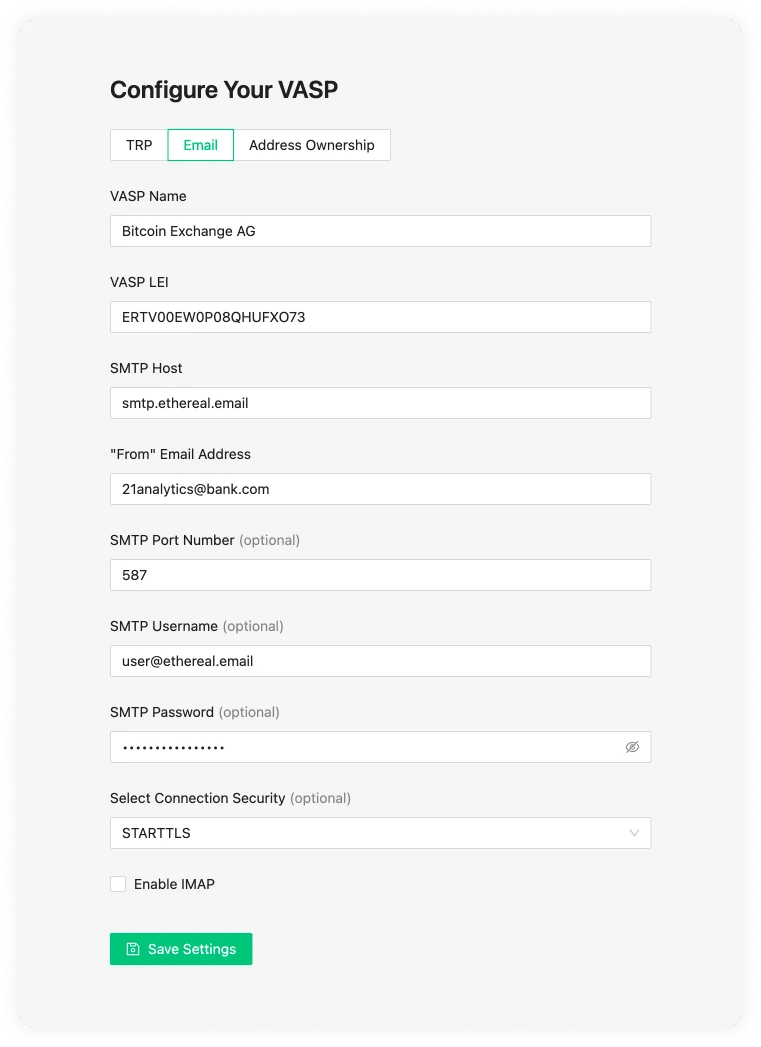
Email Configuration Settings
SMTP Host
An SMTP server is used to send and receive emails. Your SMTP server is either managed by your IT department or an external company. Gmail is an example of a host. If you are unsure of this information, it is best to check with your IT team.
"From" Email Address
This is the email address you will use to send information from.
SMTP Port Number (optional)
This is the port number of your SMTP. The standard secure SMTP port is 587. As a common alternative, port 2525 is usually used. With this said, this field is optional and defaults to 587; if you are unsure, leave this empty.
SMTP Username (optional)
This is the name of the user on the SMTP server you want to use. This will usually be configured on the SMTP server by your IT team. It is required when using Microsoft OAuth 2.0.
SMTP Password (optional)
Once your IT team configures the SMTP username in the SMTP server configuration, a password will also be required unless you use Microsoft OAuth 2.0.
Use Microsoft OAuth 2.0 (optional)
Select this option to authenticate to Microsoft 365 Exchange Online without a mailbox password. This replaces the SMTP Password field with the Microsoft Entra Tenant ID, Client ID and Client Secret fields. See the Microsoft 365 setup guide for instructions on obtaining these values.
This option supports organisational Microsoft Entra accounts. It does not support personal Outlook.com accounts.
Select Connection Security (optional)
These can be one of three options:
- STARTTLS
- TLS
- OPTIONAL STARTTLS
The default value we use is usually STARTTLS, although 21 Travel Rule will automatically choose the option more appropriate for you. If issues do appear you can consult your IT team. Microsoft OAuth 2.0 requires STARTTLS.
Gmail and Google Workspace SMTP Setup
Objective
In this guide you will learn how to set up the SMTP settings for Gmail and
Google Workspace email accounts. Note, that Gmail and Google Workspace email
addresses don't necessarily end in @gmail.com. Hence, your company's email
accounts might be managed by Google even if the email address doesn't reveal it.
Instructions
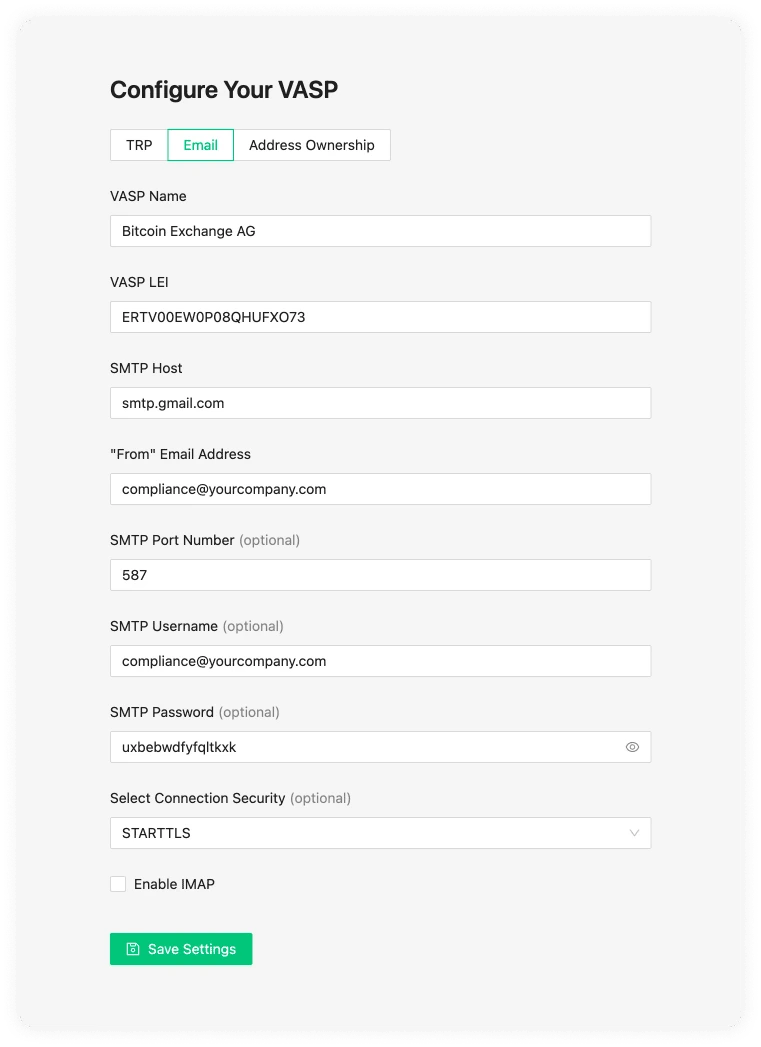
Gmail SMTP Host
smtp.gmail.com
Gmail "From" email address
For the "From" email address, use the email address of your Gmail account.
Gmail SMTP Port Number
587
Gmail SMTP Username
The same full email used in the "From" email address must be used as the SMTP Username.
Gmail SMTP Password
To generate the SMTP Password, go to https://myaccount.google.com/apppasswords.
When creating the app password you will need to add a App Name. This name can be
anything you want, we have used 21 Travel Rule in the following example.
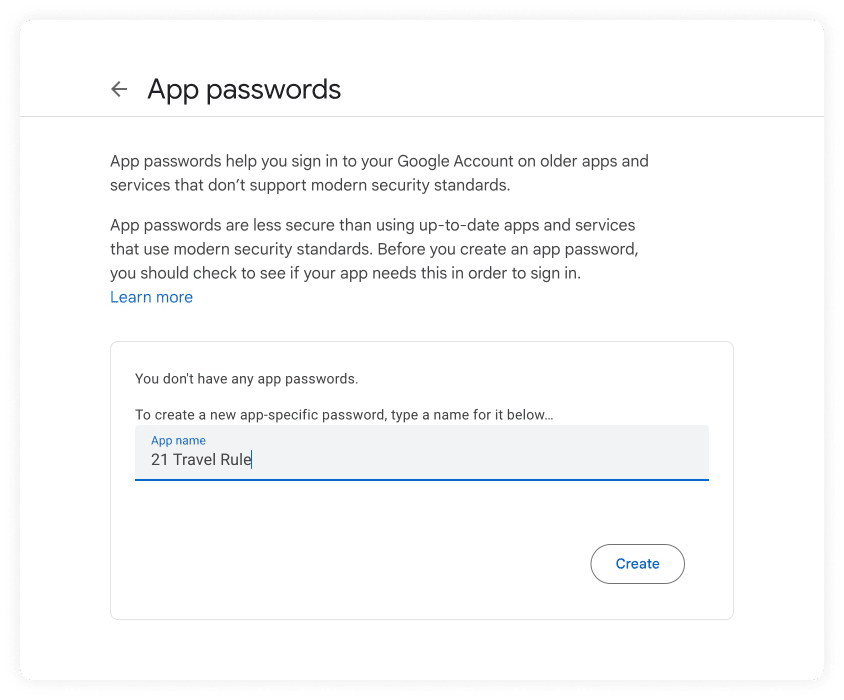
After you click create, a pop-up will appear with the app password. At the time of the writing the password is displayed with spaces. Copy the password and remove the white spaces from the password.
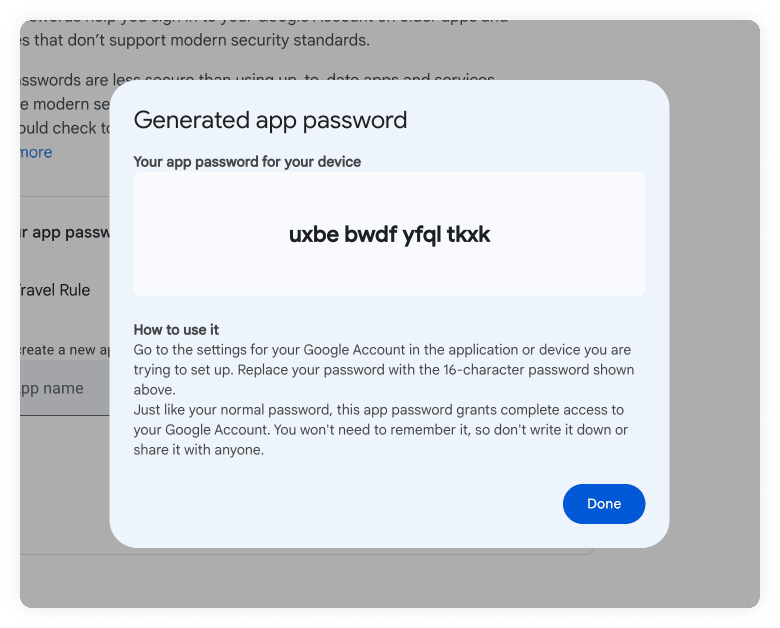
Note: Remember to remove the white spaces from the password when you copy it to the SMTP Password.
Gmail Connection Security
STARTTLS
Putting all of this together, the final Google configuration should look like this:
Microsoft 365 Exchange Online SMTP OAuth Setup
Microsoft OAuth Prerequisites
This guide configures 21 Travel Rule to send email from a Microsoft 365 Exchange Online mailbox using OAuth 2.0 client credentials. You need administrator access to Microsoft Entra and Exchange Online.
Register The Application
- Sign in to the Microsoft Entra admin center.
- Go to Entra ID → App registrations, select New registration and register a single-tenant application.
- On the application's Overview page, record the Directory (tenant) ID and Application (client) ID.
- Go to Certificates & secrets → Client secrets, create a client secret and immediately record its Value. The value is shown only once and is different from the secret ID.
- Go to API permissions and select Add a permission.
- Select APIs my organization uses and then Office 365 Exchange Online.
- Select Application permissions, add
SMTP.SendAsAppand grant admin consent for the tenant. Do not select a delegated or Microsoft Graph permission with a similar name.
Client secrets expire. Record their expiry and replace the value in 21 Travel Rule before it expires.
Configure Exchange Online
Microsoft security defaults block SMTP AUTH, including OAuth authentication. If security defaults are enabled, follow Microsoft's security defaults instructions to disable them and review the security implications with your administrator.
Enable Authenticated SMTP for the sender mailbox in the Microsoft 365 admin center:
- Go to Users → Active users and select the sender.
- Select Mail → Manage email apps.
- Select Authenticated SMTP and save the change.
Next, register the application in Exchange Online and grant access to the sender mailbox. Install PowerShell and run the following commands as an Exchange Online administrator:
Install-Module -Name ExchangeOnlineManagement
Import-Module ExchangeOnlineManagement
Connect-ExchangeOnline -Organization "<tenant-id>"
New-ServicePrincipal -AppId "<client-id>" -ObjectId "<enterprise-application-object-id>"
$servicePrincipal = Get-ServicePrincipal | Where-Object AppId -eq "<client-id>"
Add-MailboxPermission -Identity "<sender-email>" -User $servicePrincipal.Identity -AccessRights FullAccess
Add-RecipientPermission -Identity "<sender-email>" -Trustee $servicePrincipal.Identity -AccessRights SendAs -Confirm:$false
Use the Object ID from Entra ID → Enterprise applications → your
application → Overview for <enterprise-application-object-id>. Do not use
the Object ID from App registrations, which is a different identifier.
For more details, see Microsoft's OAuth instructions for SMTP.
Configure 21 Travel Rule
Enter the following values in the Email tab:
- SMTP Host:
smtp.office365.com - "From" Email Address: the sender email address granted above
- SMTP Port Number:
587 - SMTP Username: the same sender email address
- Use Microsoft OAuth 2.0: selected
- Microsoft Entra Tenant ID: the Directory (tenant) ID
- Microsoft Entra Client ID: the Application (client) ID
- Microsoft Entra Client Secret: the client secret Value
- Select Connection Security:
STARTTLS
Save the settings. 21 Travel Rule validates both token acquisition and the SMTP connection before applying the configuration.